
How do I see how my posts perform?
Analytics shows reach, views and engagement per channel, and which posts did best.
Open this page 4 steps
-
Open Post in the left rail and click Analytics.
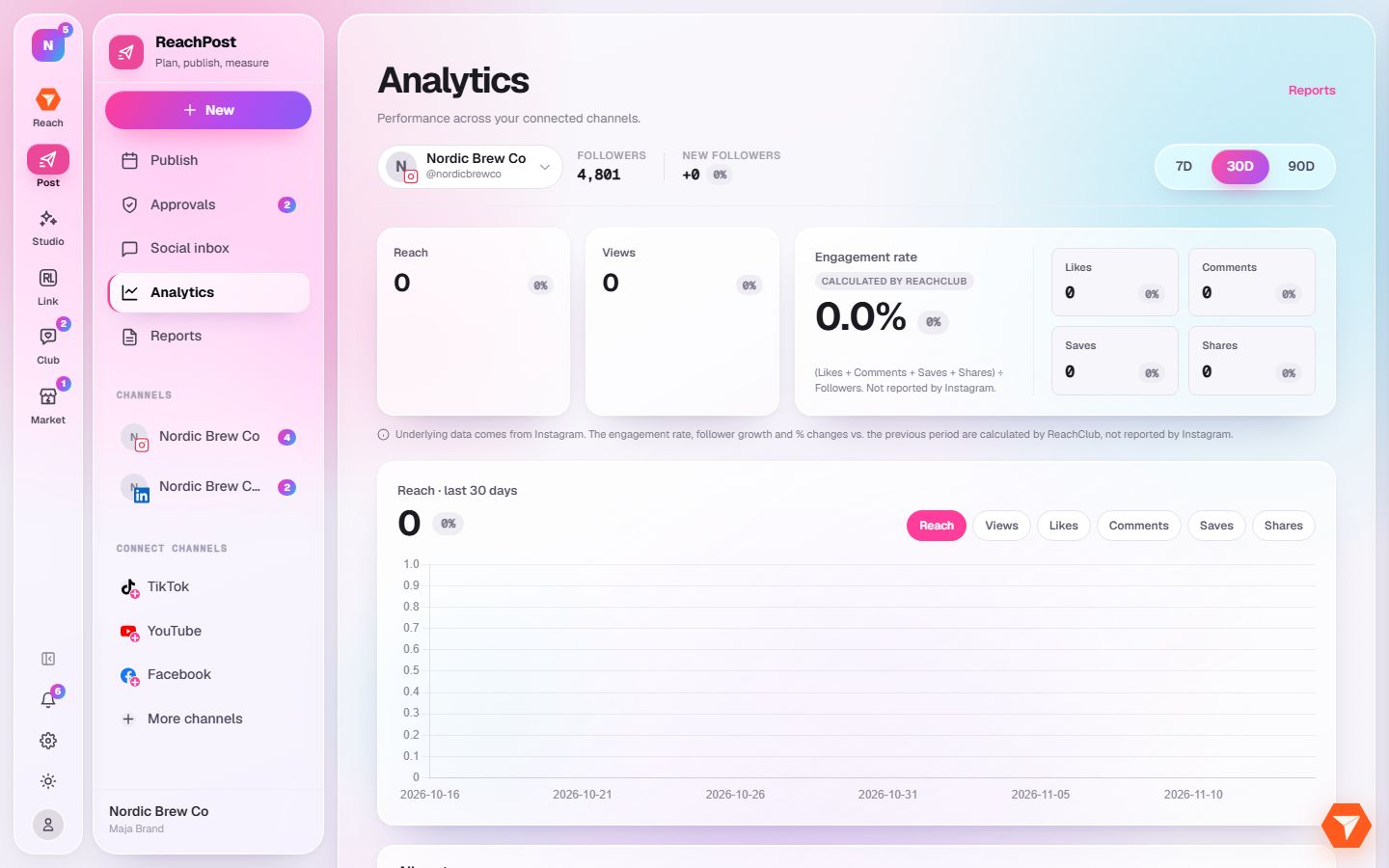
What you should see: The numbers of your first channel open, with a chart of the last 30 days.
-
Click the channel name to switch to another channel.
What you should see: A list of your connected channels opens. Pick one and the page reloads with its numbers.
-
Choose 7D, 30D or 90D to change the period.
What you should see: The chart and every number follow the period you picked.
-
Click a metric above the chart to plot it.
What you should see: The chart shows that metric day by day. Your posts are listed under it.